What we're building
One afternoon, one brand, zero designers
The test project: The Loop Boxing Club, a made-up boxing gym in downtown Chicago. I wanted sleek, simple, and city. By the end I had a logo, a 4-page brand kit, a homepage design, six photos that don't look AI-made, and the site running live in a browser.
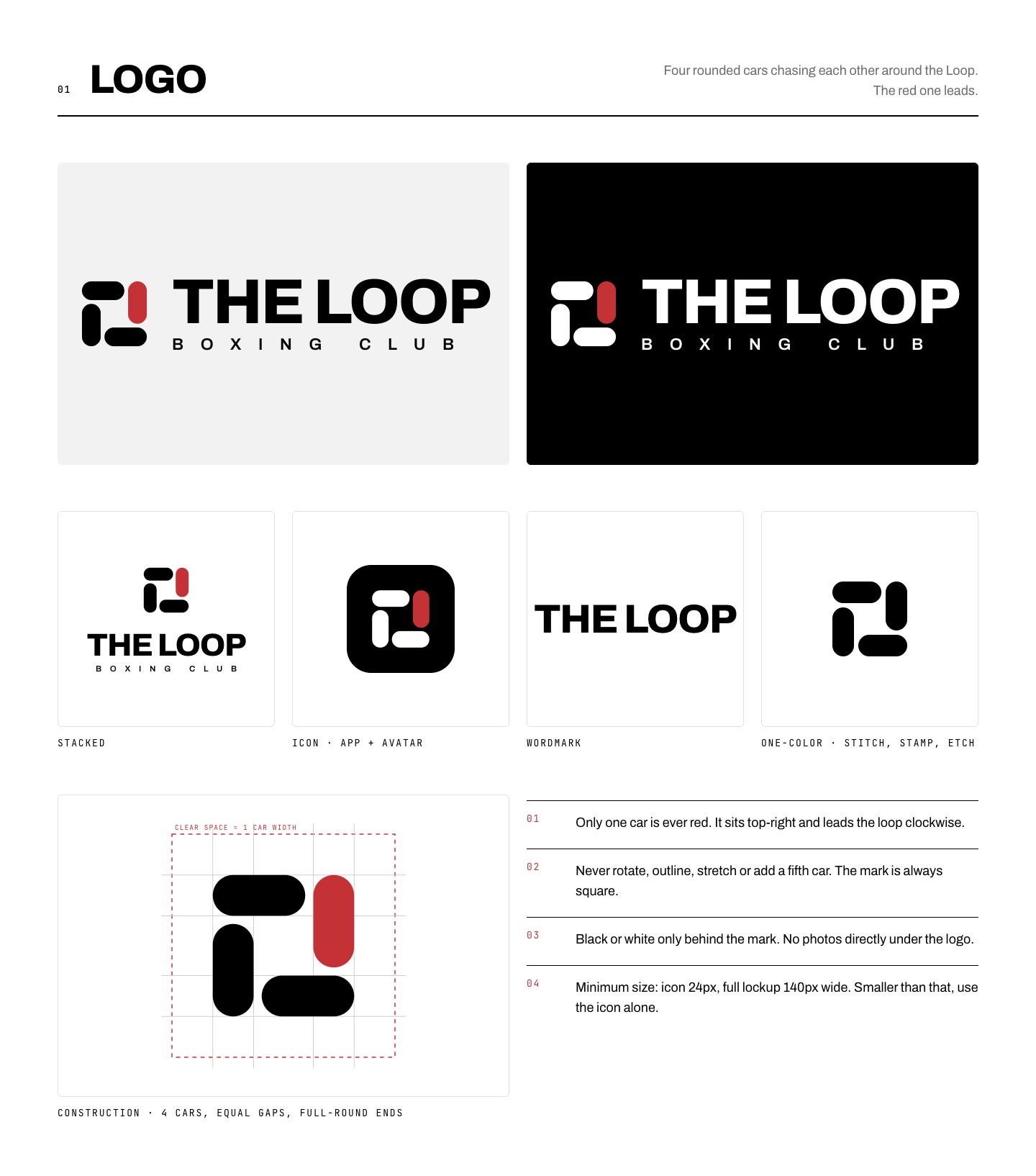
Here's the logo system it produced:
Read this first
The 3 rules that make or break it
Lock the brand kit before you touch the website
The website is built out of the brand: the logo, the colors, the fonts, the voice. If those are still moving, every website draft is wasted. Name, logo, kit, then website. In that order, every time.
AI makes what you show it. So show it great stuff.
This is the whole trick. Paper and AI in general are amazing with references, and they'll make something close to whatever you give them. Give them nothing and you get the average of the internet: AI slop. I proved it by accident. My first three brand directions, made with no references, were mid. The second I dropped in logos I actually liked, everything got good.
Say what you hate, fast
The best feedback I gave all day was "I hate this cream color, it looks like AI slop." One sentence and the whole brand got better. You don't need design words. You need to say no out loud the second something feels off.
Your toolkit
The 3 tools and 3 reference sites
Everything here is free to start except Higgsfield, and Higgsfield is optional until the photo step.

Claude (the app or Claude Code)
Your designer, art director, and developer in one. Every prompt below goes here. I used Claude Code because it can also build and run the website at the end.

Paper
A design canvas Claude can see and draw on. Download Paper Desktop, open a file, then open the MCP panel and click Add to Claude. Keep Paper open with a file loaded while you work, or Claude can't reach it. Full setup is in my Claude + Paper guide.

Higgsfield (for icons and photos)
One place for the best image models. Connect it to Claude as an MCP so Claude can generate, compare, and download images for you. I used it twice: to explore more logo icons, and to make the website photos.
Where the references come from

LogoInspo: for logos
A huge gallery of real, well-made logos. This is where every logo reference in the video came from. Screenshot 4 to 6 you love.

Siteinspire: for websites
A curated showcase of beautifully designed websites, updated daily. This is where I found the homepage references. Filter by style or industry, then grab full-page screenshots.

Refero: for real product screens
I didn't use it in the video, but it's one of my favorites for AI design. A searchable library of real websites and app screens from great products. Perfect when you need a reference for one specific thing, like a pricing table or a sign-up page.
Getting references onto the canvas: screenshot them (use the free GoFullPage Chrome extension for whole websites) and drag them straight into your Paper file, left to right. Logos go on a "Branding" page, websites on a "Website" page.
Step 1
Name it (with a story)
Don't ask for "cool names." Ask for names that come from something real. A name with a story gives you a logo idea for free. One of my options was "Fifth Star," because the Chicago flag has four stars and people have argued about a fifth for decades. That one came with a logo already built in.
I went with The Loop Boxing Club, named after the train tracks that circle downtown. Everything after this step got built around that one idea.
Name prompt
I'm starting a brand from scratch and I need a name first.

What it is: [Example: "A sleek, simple boxing gym in downtown Chicago."]
Who it's for: [Example: "People who work downtown and have never boxed before."]
The vibe: [Example: "Clean, premium, city. Not gritty, not corporate."]

Give me 7 name options. Rules:
- Every name has to come from something real about the place, the people, or the craft. Give me the story behind each one in one line.
- Flag any name that comes with a logo built in (a shape, a symbol, a landmark you could draw).
- Mix short and simple with a couple that are more distinctive.
- No made-up words, no puns, no "-ify" or "-ly" endings.

For each one: the name, the story, and what it would look like as a logo. Then pick your favorite and tell me why in two sentences. Remind me to check that no real business already uses it before I commit.
Step 2
Riff on logos from your references
Go to LogoInspo and pull 4 to 6 logos you love. You don't need to love the whole logo. You need to love one thing about it: the font on one, the icon style on another. Drop them on your Paper canvas.
Then write one specific sentence per logo. "I like it" tells Claude nothing. "It's an outline that wraps into a solid shape, and it already looks like a loop" tells Claude exactly what to build. Talking it out with a voice-to-text app works great here.
Logo riff prompt
Use the Paper MCP. Open my Paper file "[FILE NAME]" and look at everything on the canvas before you design anything.

Brand: [NAME + one line. Example: "The Loop Boxing Club, a sleek boxing gym in downtown Chicago."]
What the logo has to say: [Example: "The Loop, the elevated train tracks that circle downtown Chicago."]

I dropped [NUMBER] logo references from LogoInspo onto the canvas. Screenshot each one and tell me in one line what you see. Here's what I like about each (left to right):

1. [Example: "The icon in the top left. An outline that wraps into one solid face. It already looks like a loop."]
2. [Example: "The font on Arcos. Clean lowercase, nothing extra."]
3. [Example: "Lemonade: both the heavy font and the rounded, chunky icon style."]
4. [Example: "Serro: the circle made of vertical bars."]
(Add or delete lines so it matches your board.)

Design one logo per reference on a new artboard: an icon plus the wordmark, built on what I said I like about that reference. Steal the idea, never the shape. Nothing should look like a copy.

Rules:
- Black on pure white only. No color yet. No cream or beige backgrounds. No gradients.
- Draw every icon as clean vector shapes (SVG), simple enough to still read at 24px.
- Under each one, label which reference it came from and the font you used.
- Screenshot when you're done. Be honest: tell me the weakest one, and which 2 you'd push forward and why.

Then stop and wait for my feedback.
Black and white first, color last
A logo that only works in color is a weak logo. Decide the shape in black and white. Color is the easiest thing to change and the last thing to worry about.
Interrupt it
You'll see Claude drawing on the canvas in real time. If it's heading somewhere you hate, stop it mid-way and redirect. I did this twice and it saved me a whole round each time.
Step 3 (optional)
Explore more icons with Higgsfield
Claude draws clean vectors, but image models are faster at throwing out wild ideas. One prompt gets you a sheet of 9 icon concepts. Out of mine, 4 were worth keeping and 5 looked like clip art. That's a great hit rate for 30 seconds.
The rule: AI images are sketches, not logos. They're blurry up close and can't be resized cleanly. When one wins, have Claude redraw it as a vector in Paper.
Icon exploration prompt
Use the Higgsfield MCP with GPT Image. Generate a logo exploration sheet for [BRAND + what the name means. Example: "The Loop, a Chicago boxing gym named after the elevated train loop downtown"].

A clean 3x3 grid of nine different minimal flat icon marks, solid black on a pure white #FFFFFF background. Ideas to explore:
[List 4 to 9. Example:
- a pinwheel of four rounded bars chasing each other around a square
- a boxing ring seen from above with the ropes as loops
- a hand wrap wound into a square loop
- a six-pointed Chicago star drawn as one continuous loop]

Thick, confident shapes. Swiss modernist identity design. No text, no gradients, no shadows, no color, no mockups.

Then make 2 single-icon versions of my 2 favorite directions: [IDEA 1] and [IDEA 2].

Put every result on a new artboard in my Paper file "[FILE NAME]" called "Higgsfield explorations." Tell me which ones are worth redrawing as clean vectors and which ones look like clip art.
Step 4
Lock the brand kit
Pick one logo and commit. My pick was the "Track Pinwheel": four rounded train cars chasing each other around the Loop, with one red car leading. Then build the whole kit around it in one prompt.
The most underrated part is the last line: save everything as design tokens. Tokens are the brand's exact colors, fonts, and sizes saved inside Paper. When Claude builds the website later, it reads those same values instead of guessing. That's why the live site matches the brand perfectly.
Brand kit prompt
Use the Paper MCP. I'm locking in [WHICH LOGO, example: "the Track Pinwheel with the Archivo wordmark"] as my logo. Delete every other exploration.

Make a new page called "Brand Kit" and build the full kit as 4 artboards, 1440px wide:

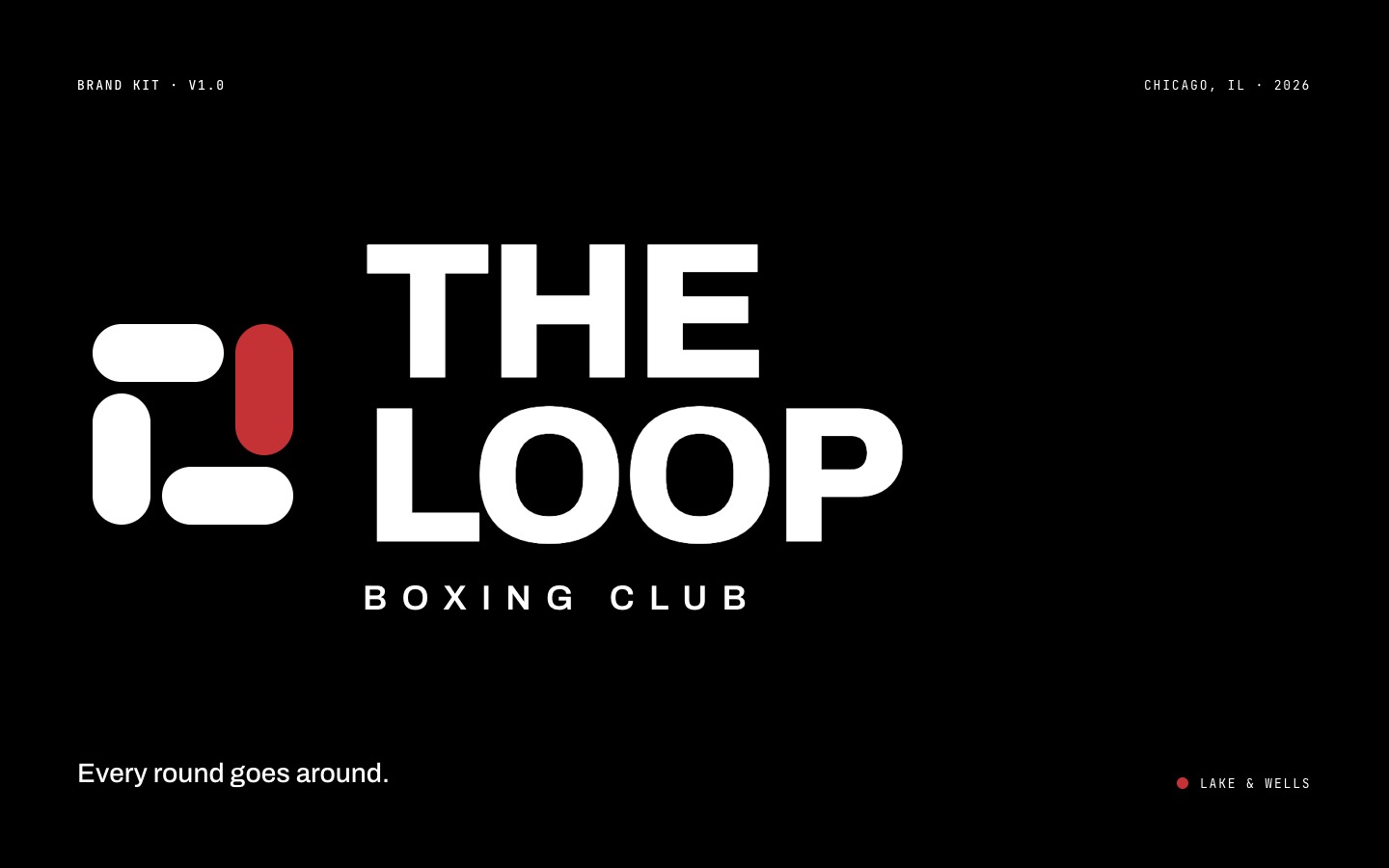
1. Cover: the icon and wordmark big, plus a tagline. [Example: "Every round goes around."]
2. Logo system: the main logo on white and on black, a stacked version, an app icon, the wordmark alone, and a one-color version for stitching and stamps. Then the construction grid with clear space marked, the minimum sizes, and 4 rules for what never to do with the logo.
3. Color + type: [Example: "black and white with just a hint of red"]. Show each color as a swatch with its hex code and how much of the brand it should take up (like 60% / 30% / 5%). One accent color max, and spell out exactly where it's allowed. Type: one font family for headlines and body plus a mono font for labels and numbers. Show a big specimen and the size scale.
4. Voice + in use: 2 lines we would say and 1 line we would never say, in my brand's voice. Then the logo on real things: [Example: "a storefront sign, an Instagram post, a membership card, and a class schedule"].

Also save the colors, fonts, font sizes, spacing and corner radius as design tokens in the Paper file, so the website uses the exact same values later.

Pure white or pure black backgrounds only. Screenshot each artboard and fix anything clipped, misaligned, or hard to read before you move to the next one.
One accent color, used once
My first homepage drafts had red in 4 places and it looked cheap instantly. The rule in my kit: red shows up once per screen, like the lead train car. Restraint is what reads as expensive.
Skip the cream
Warm off-white backgrounds are the number one AI-design tell right now. Pure white or pure black looks intentional. Cream looks like every other AI-made brand.
Want to see the full build?
I learned this exact process from my friend Remy Gaskell inside The AI Course, where I'm a coach. Members get a full 52-minute walkthrough of how to actually do this.
Check out The AI Course →Step 5
Design the homepage from references
Now the website. Same trick: references. Go to Siteinspire and Refero, find 3 to 5 sites you like, and screenshot them onto a "Website" page in Paper. Honestly, I wasn't sold on any of mine. That's fine. You're not copying them. You're giving Claude a direction.
The prompt asks for one mockup per reference plus 2 originals. The originals matter. One of mine turned the hero into a train arrivals board showing the next classes, an idea that only works for this brand.
The photo trick: every image slot is a gray box with the photo idea written inside. Later, those captions become the prompts for your real photos.
Homepage mockups prompt
Use the Paper MCP. Before you design anything, read the "Brand Kit" page and the design tokens in my Paper file "[FILE NAME]". Every mockup uses those exact colors, fonts, and logo.

I added [NUMBER] website references to the "Website" page. Screenshot each one. Here's what I like (left to right):

1. [Example: "FUME: full-bleed photos, tight margins, tiny all-caps labels."]
2. [Example: "Hudson Boxing: the black hero, the 'two ways to start' section, the photo grid."]
3. [Example: "Les Grands Chenes: the centered wordmark and the calm photo collage."]

The business: [What it is, who it's for, and the ONE thing visitors should do. Example: "A boxing gym in the Chicago Loop for beginners. The one action: book a free class."]

Design [NUMBER OF REFERENCES + 2] homepage mockups as 1440px-wide artboards, side by side: one per reference, translated into my brand, plus 2 original ideas of your own that would only make sense for my brand. [Example of an original: "The hero is a train arrivals board showing the next classes and open spots."]

Rules:
- Before you design, post a short brief: the mood, the palette (from my tokens), the type scale, and the direction in one sentence.
- One accent-color moment per screen. No gradients, no glows, no row of 3 feature cards with icons.
- Wherever a photo goes, use a gray box and write the photo idea inside it as a caption: the shot, the subject, the light, the mood. We'll generate the real photos later.
- Write real copy for my business. Short sentences. No buzzwords.
- Build section by section. Screenshot each section and fix anything cramped, clipped, or misaligned before moving on.

When all of them are done, list each mockup with its vibe in 5 words, then stop and wait for me.
Step 6
Pick one, then make photos that don't look AI
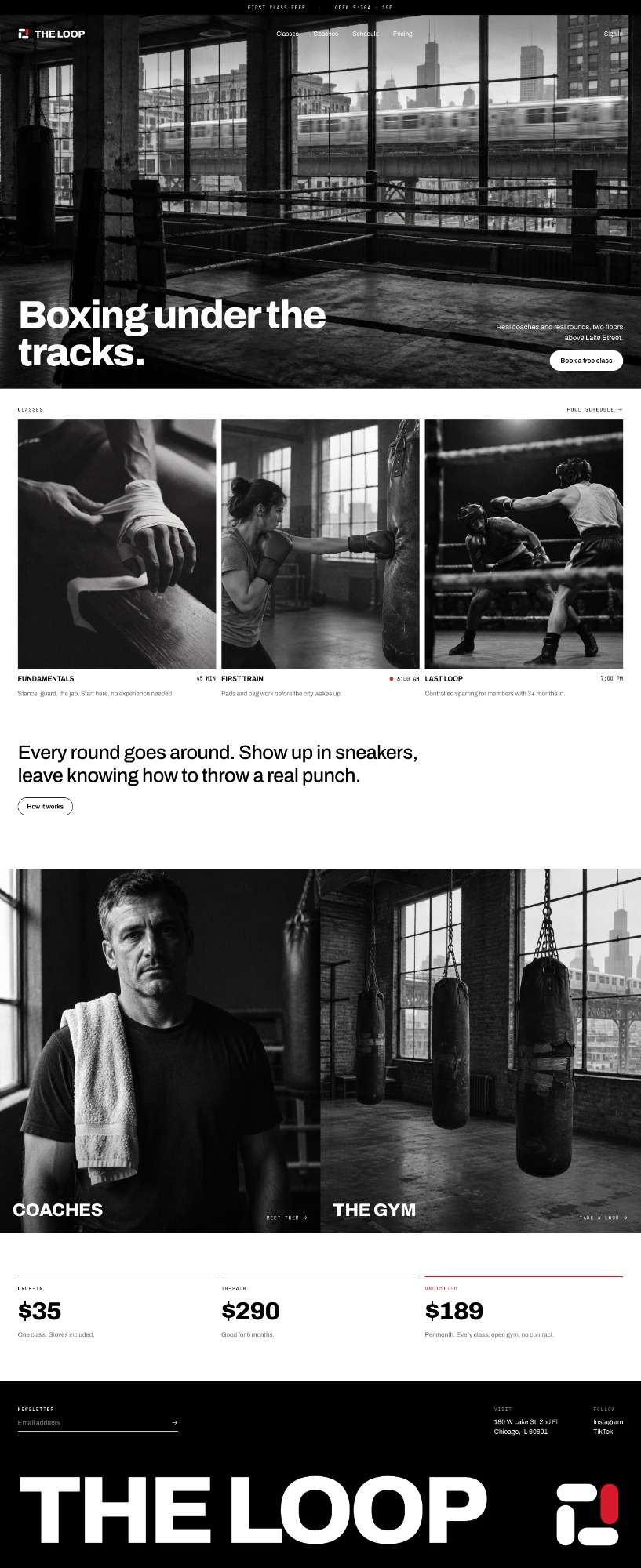
Pick your favorite mockup and delete the rest. I went with the clean editorial one, modeled on a home-fragrance brand's site. Then it's photo time.
The secret here is running every photo through two models and keeping the more real one. Neither model won every time. GPT Image nailed the wide shots with the train and the skyline. Soul 2.0 nailed the close-up of hands getting wrapped. Out of 16 photos, I kept 6. One had a fighter whose head disappeared. One had fake text printed on a glove. One looked like a scanned magazine page.
Real photos prompt
I'm going with "[ARTBOARD NAME]". Delete the other homepage mockups.

Now generate the real photo for every gray box using the Higgsfield MCP. These cannot look AI generated. Hyper-real only.

For each box:
1. Write the image prompt from the caption. Add my photo style: [Example: "black and white documentary photo, 35mm film grain, natural window light, Kodak Tri-X"], plus real imperfections, no text, no logos, not glossy.
2. Generate it with two models: GPT Image, and Soul 2.0 (use Soul Location instead for empty rooms with no people). Match each aspect ratio to its box.
3. Download both and look at them up close. Pick the more real one. Reject anything with: extra or melting fingers, impossible body positions, gibberish text or fake logos on objects, fake film borders or magazine-scan looks, HDR-clean surfaces, plastic skin.
4. If both versions fail, simplify the shot (fewer people, simpler action) and try again.

Give me a one-line verdict per photo (which model won and why), then put the winners into the Paper design.
The AI-photo checklist (zoom in on every one)
- Hands and limbs. Count fingers. Check that arms bend the way arms bend.
- Physics. Does the punch actually land where it should? Mine went straight through a pad.
- Text on stuff. Gloves, shirts, and signs come back with gibberish logos. Instant fake.
- Fake "film" looks. Borders, labels, and magazine-scan edges the model added on its own.
- Too clean. Real floors are scuffed. Real bags are patched. HDR-perfect surfaces scream AI.
- Simpler wins. If a shot keeps failing, cut it down. One person hitting a bag beats two people mid-combo.
Step 7
Turn it into a live website
Once the design is locked and the photos are in, Claude Code reads the exact values out of Paper and builds the real site. Mine went from Paper design to running in a browser in one prompt, tested on desktop and phone.
Design-to-website prompt
Use the Paper MCP. Read the "[ARTBOARD NAME]" artboard and the design tokens in my Paper file "[FILE NAME]". Build it as a real website in a new folder called [FOLDER NAME, example: "my-brand-site"].

- Plain HTML and CSS is fine for a first preview. If this site needs to bring in customers from Google, build it in Astro instead.
- Pull exact values from Paper (get_jsx and get_computed_styles). Never guess colors, sizes, or spacing from a screenshot.
- Download the photos, compress each one to under 700KB, and give every image alt text that describes it.
- Make it work on phones: one column, no text smaller than 14px, no sideways scrolling.
- Small, quiet motion only: photos zoom about 3% on hover, buttons press in when tapped, and all motion turns off for people with "reduce motion" switched on.

Then start a local preview, open it, scroll the whole page at desktop width and at a 375px phone width, fix anything broken, and send me a screenshot of both.
Save yourself the hours
5 mistakes I made so you don't have to
1. Starting without references
My first 3 brand directions came from a text brief alone. All 3 were forgettable. References first, always.
2. Letting a soft color sneak in
Claude defaulted to a cream background twice. If you don't say "pure white or pure black," you'll get cream.
3. Using the accent everywhere
Red button, red label, red tile, red logo, all on one screen. Cut it to one and the page instantly looked better.
4. Trusting a photo at thumbnail size
Every AI photo looks fine small. Open it full size before you approve it. That's where the extra fingers live.
5. Keeping every exploration around
Once you pick, delete the rest. A canvas full of old options makes Claude (and you) second-guess the decision.
Want more?
The full 52-minute version
I'm giving all of this away for free. But I learned exactly this from my friend Remy Gaskell, who teaches it inside The AI Course. I'm a coach in there.
Members get a full 52-minute guide on how to actually do this, start to finish. Plus new workshops every month, and 4 live office hours every week with me and Remy.
Next steps
Make the website actually bring in customers
A good-looking site with no traffic is a business card nobody picks up. Here's where to go next:
I Rebuilt a Local Business With AI →
The playbook I ran for my friend Grant: rebuild the site in Astro (fast, built for Google) as a 47-page SEO machine, plus the CRM and ads that turn visitors into customers.
20 Secret SEO Claude Prompts →
The full SEO playbook. Audit your site and your competitors and get a real plan to outrank them.
How I Built a Client-Ready Website in 3 Hours →
The exact stack for taking a design live: Astro, GitHub, and Vercel, with the SEO and AI-search layers built in.
Claude Killed AI-Slop Websites →
Go deeper on the Paper website loop: combining variants, fixing designs with comments, and the mobile version.
The AI Course
Want the whole system, not just this piece?
This guide is one part. The AI Course walks you through building your own AI Operating System: an AI that knows your business, connects to your tools, and does real work for you. No coding. I coach inside it every week.
Check out The AI Course